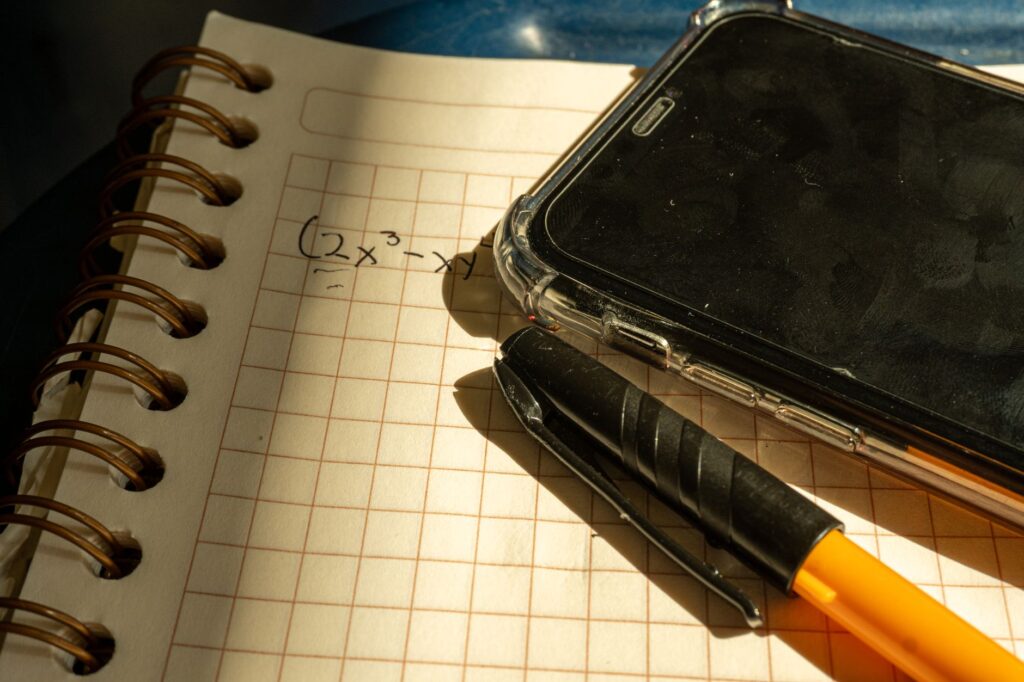
If you need a math problem solver with steps, AI Math Problem Solver Scanner can read a photo or typed problem and return a worked solution. With explanations and a final answer check.
Use the math problem solver with steps to scan homework, paste an image. Upload a worksheet photo. Or type the problem manually, its meant for checking and learning, not for blindly copying into graded work or assuming every answer is correct.
The tool is useful when the hard part isn’t just getting an answer. But seeing the path. What expression was read. That operation came next and how the final answer was checked.
Plus it supports photos through cloud AI vision, typed input up to 2,000 characters. Plus an optional hint field. For short instructions such as solve for x or part b.
What AI Math Problem Solver Scanner does
AI Math Problem Solver Scanner is a photo math solver and typed input solver. For homework style and exam style math questions. You give it one problem, either as an image or text. Plus it returns a step by step worked solution with explanations.
The result includes a final answer plus an answer check. Described in the app as substitution or an alternate method. Simpel as taht.
The main safety net is the Problem as read area. Before you trust the steps, compare that text with the original problem.
A tiny minus sign, a square root bar. Or a copied exponent can change the whole solution.
If it read the problem incorrectly, the app lets you use Edit the problem or Edit the problem, then re-solve.
This isnt a guarantee machine. Well, the app says AI can make mistakes and tells users to check the answer. Especially for exams. Treat it like a worked example. From a tutor that still needs your eyes. On the setup and final check.
Math problem solver with steps: the right time to use it
A math problem solver. With steps is best when you already have a specific problem. And want to understand the work.
And that could be an algebra equation on a worksheet. A word problem you typed out. Or an exam problem you’re usign for practice.
Parents can use it to help with a worksheet question. And tutors can use it to review one possible worked solution. Before explaining it in there own way. You get the idea.
You’ll find times I’d avoid scanning the whole page. If your worksheet has eight problems, crop to one problem. Unless you have Pro and intend to use the multi problem photo feature.
Free multi problem handling is limited. When multiple problems are detected for a non Pro user, the app states it solved the first one.
Use it as a homework math solver when you need a hint. A plain explanation. Or a final answer check. Makes sense.
Use it as an exam problem solver only for practice or review. And only within the rules you’re expected to follow. It isn’t approved for evry exam situation. And no scanner can make that decision for you.
How to scan, paste, upload, or type a problem
The cleanest results usually come from giving the solver one clear problem and one clear instruction.
If the photo includes a teacher’s note, a calculator screen. And half of the next question, crop tighter.
If the typed problem is long, include the actual question being asked, not just the equation.
- Open the AI Math Problem Solver Scanner page.
- Use Take or drop a photo of a math problem or Choose a photo of a math problem to add an image. You can also paste an image.
- If you dont want to use a photo, use Or type the problem (max 2,000 characters) and enter the question manually.
- Add short guidance in Optional hint (max 200 characters) if needed. Like solve for x, simplify, or part b.
- Choose a Mode. Standard is availible in free mode. Pro modes shown in the app include Hint only, Explain simply, Concise, and Alternate method.
- Choose Output language. English is shown, with Pro language options. For Spanish, French, German, Portuguese, Hindi and Chinese.
- Press Solve.
- Review Problem as read. If a sign, fraction, exponent, or instruction is wrong, use Edit the problem or Edit the problem, then re-solve.
- After the result, use Copy solution if you want the worked answer as text. Pro export options shown include Markdown and PDF.
The paid plan for AI Math Problem Solver Scanner adds the tool’s higher limits and extras. Including many more solves per day, Pro modes, languages, exports, history and multi problem photos. No price is needed to decide the basic workflow.
Start with the clearest possible input, then verify what the solver read.
Photo formats, limits, and typed input trade-offs
Images are convenient but typed input gives you more control. The image input text lists JPG, PNG, WebP and GIF up to 8 MB. The feature list also mentions JPG, PNG, WebP, and HEIC. If the browser decodes it.
If a file is over 8 MB, it’s rejected.
Typed problems are limited to 2,000 characters. And the optional hint is limited to 200 characters.
That’s enough for many algebra, geometry, and word problem prompts. But it isn’t meant for a whole chapter page.
If your math question includes a table. From a screenshot, the related AI Screenshot to Table may be a better first stop. Before you rewrite the data as a problem.
If the source is spoken notes. Rather than a written question, the related AI Audio Transcriber is the more sensible starting point. That’s the point.
| Input choice | Best use | Limit or note | Practical tip |
|---|---|---|---|
| Take or drop a photo | Fast scan from a worksheet or notebook | JPG, PNG, WebP, and GIF up to 8 MB are listed in the image input | Retake closer, in good light, with one problem filling the frame |
| Choose a photo | Upload an existing image from your device | HEIC is mentioned only if the browser decodes it | If the image cannot be read, try JPG, PNG, or WebP |
| Paste an image | Quick use from a copied screenshot | Still depends on image clarity and browser support | Crop out extra problems and margins before solving |
| Type the problem | Precise symbols, word problems, or corrections after scanning | Maximum 2,000 characters | Include the instruction, such as factor, solve, simplify, or prove |
| Optional hint | Tell the solver what part to answer | Maximum 200 characters | Use short guidance like solve for x or use substitution |
Trying to solve a math problem. From a photo works best when the image has one target. Blurry handwriting, tilted pages, glare, and crowded worksheets make the scanner’s job harder.
If the result looks odd, don’t fight the full image.
Crop it or type the problem.
Modes, answer checks, alternate methods, and languages
Free mode includes Standard solving. That’s the default choice for most homework checks.
Read the porblem, work it step by step. Explain the moves. And give the final answer.
If you only need a normal step. By step math solver, Standard is the setting to try first. Really.
Pro modes shown in the app give different kinds of help. Hint only gives help with no final answer. That is a beter fit. When you stil want to finish the problem yourself.
Explain like I’m new to this is for slower, plainer reasoning. Concise steps is for shorter work. And Show alternate method is useful when the first method is technically rihgt. But not how your class is doing it.
The answer check matters. A final answer by itself can hide a wrong turn. Meanwhile, substitution or an alternate method can catch some errors.
Like, after solving for x, substitution means putting the value back into teh original equation and seeing wether both sides match. For some problem types, a alternate method gives a second route. Rather than a simple plug in check.
Output language starts with English. Pro langauge options shown are Spanish, French, German, Portuguese, Hindi, and Chinese.
If your helping someone learn. In a different language, that can make the explanation esier to discuss. But the math still needs to be checked against the original problem. Just like that.
Free daily runs and what Pro adds
The tool has a few free AI solves or runs per day. Enforced on the server. Free solves can be used up for the day and reset in 24 hours.
Free AI can also be at capacity. And daily fair use limits can be reached.
Pro adds many mroe solves per day, shown as 100/day. Plus every Pro extra in this tool. That includes Pro modes, Pro output languages, PDF and Markdown export. History of the last 50 solves in this browser only. And multi problem photos.
Pro multi problem photos can detect up to 10 problems and solve each. With the ability to pick wich to solve.
The choice is mostly about volume adn workflow. If you olny need to scan math problem once or twice. For a check, the free daily runs may be enough. When capacity is available.
If you’re reviewing many practice problems. In one sitting, the higher daily limit and history can matter more than the extra modes.
Copying, exporting, history, privacy, and browser notes
After a result, the solution can be copied as text using Copy solution.
Pro export options shown include Markdown and PDF. If you’re saving work for later, copy the solution into your own notes. So you have control over where it lives.
Pro includes history of the last 50 solves, stored in this browser only. That wording matters. Browser only history is convenient on the device you used. But it shouldn’t be treated like a permanent notebook that follows you everywhere.
If you switch browsers, clear browser data. Or move to another device, plan accordingly.
For privacy, the app states that the photo is sent to the AI service to be read and isn’t kept by this site. That means it isn’t local only. And photos aren’t processed entirely on your device.
Avoid uploading anything that contains personal information you don’t want sent for reading.
The tool may not run on some devices or browsers. If it can’t run, the app recommends the latest Chrome or Edge. On a newer computer. Or opening the page on a phone. Think about it.
The app also gives a phone link option. When the AI tool can’t run on the current device or browser.
There’s also an embed option. Truth is, the page has Get Embed Code, Embed, and Copy Code. For pasting the tool into another page.
Thats mainly useful for someone maintaining a class page, tutoring site, or resource page.
Common mistakes and fixes with a math scanner with steps
Most bad results start before the solver begins.
The scanner can only work from what it can read. Also, the typed solver can only answer the problem you actually entered.
- The photo includes too many problems. Crop to one problem, or use Pro multi problem handling. If you need to detect up to 10 problems. And choose which to solve. Seriously.
- The image is blurry or dark. Retake it closer, in good light. Wiht the problem filling the frame.
- The file is too large. Use an image at or below 8 MB.
- The format isn’t accepted or can’t be read. Try JPG, PNG, or WebP.
- The solver read a symbol wrong. Check Problem as read, then use Edit the problem before solving again.
- The typed question is too long. Cut it down to the actual problem, staying under 2,000 characters.
- The hint is to wordy. Keep it under 200 characters and write only the instruction the solver needs.
- The answer seems garbled. Try again, crop to one problem, or type the problem manually.
- The request times out or doesnt get through. Wait and try again, expecially. If free AI is at capacity or the server is slow.
- The final answer looks suspicious. Check the substitution or alternate method check. Then compare the steps with your class method.
A good scan is boring. Straight page, clear symbols, no extra clutter.
If the original is messy, typing the problem is often faster than retaking the same poor photo five times.
Frequently asked questions
Can I scan a math problem from a worksheet photo?
Yes. Thing is, you can take, drop, upload, or paste a supported image. Then solve it. The photo is sent to an AI service to read the problem. Also the app states that the photo isn’t kept by this site.
Does the free version show steps?
Yes. Free mode includes Standard solving and returns a worked step. By step solution with explanations. Subject to a few free runs per day and daily fair use limits.
Free solves can run out for the day and reset in 24 hours. And that matters.
What if the scanner reads my problem wrong?
Check the Problem as read area before trusting the solution. Use Edit the problem or Edit the problem, then re-solve to fix a symbol, exponent, sign, or instruction.
Can it solve more than one problem in the same photo?
Pro can detect up to 10 problems in one photo. And lets you pick which ones to solve.
If multiple problems are detected for a non Pro user, the app states it solved the frist one.
Is it okay to use this for exam questions?
Use it for practice, review and answer checking. And always follow your exam rules. The app doesn’t guarantee correct answers. So check the reasoning before relying on it.
What should I do if the tool will not run?
Try the latest Chrome or Edge on a newer computer. Or open the page on a phone.
The app can also show a phone link option. When the tool can’t run on the current device or browser.
Start with one clear problem, choose photo or typed input. And read the Problem as read line before you trust the solution.
The best use is simple. Get the steps, check the final answer. And learn enough to do the next one with less help.
.
Explore Our Free AI Tools
Fast, browser-based tools built for developers, creators, and everyday users — no login required.
Browse All Tools →