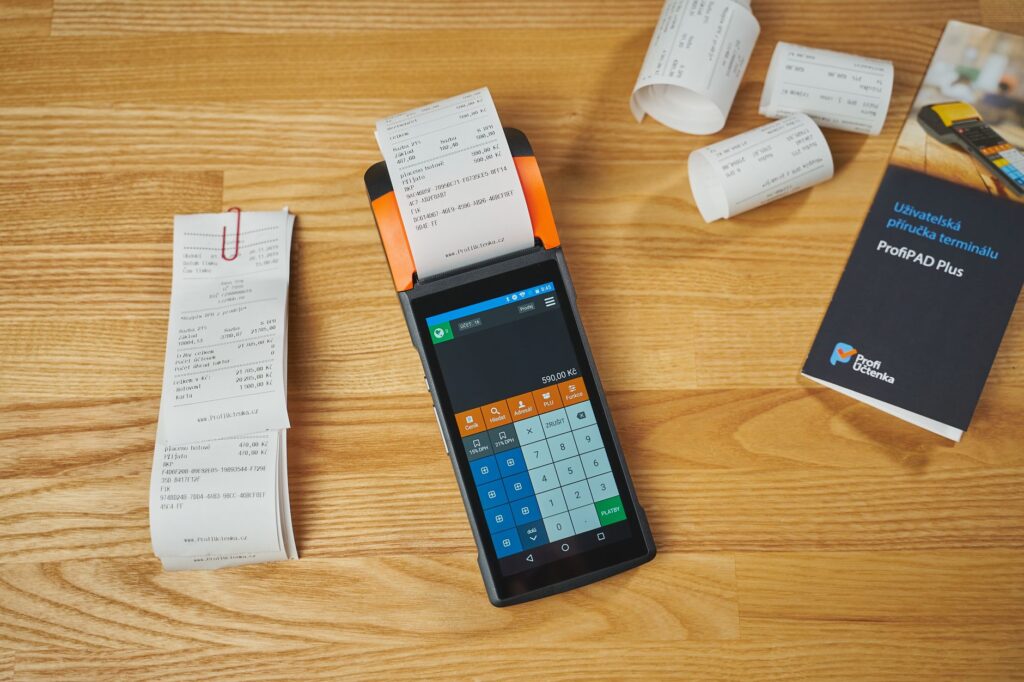
If you want to scan receipts to CSV, here’s the quick guide. Upload. Or snap a picture of your receipt. Check the extracted vendor, date, tax.
Total, then export or copy the data as CSV.
And The receipt scanner to CSV tool from Buildarity focuses precisely on this task. It adds up.
Turning receipt and invoice images into editable expense details. It’s handy when your shoebox, photo gallery, or email threads hold receipts waiting. To be entered into your accounts.
A smooth receipt to CSV proccess isn’t magic. It’s about saving you from retyping.
You stil need to review the results. Since blurry thermal receipts can confuse any scanner. Plus, you might want to pick categories yourself.
The benefit is that basic columns are filled automatically. So you just tweak the table before exporting it.
How this receipt scanner creates CSV files
AI Receipt Scanner Export reads photos of receipts. Invoices, turning what it sees into a table of expense details. Thing is, it catches vendor, date, tax, and total automatically. But On the free plan, you also get currency, subtotal, payment method and category fields. Think about it.
You can edit the results before exporting, adn thats very important.
Receipts aren’t neat or uniform.
Sometimes the store name is just a logo instead of clear text. Dates may be printed at different spots on the slip. But Tax mgiht show as a separate line or not appear at all.
This tool tries to give you a head start. Not a final locked answer.
CSV files store data as simple rows and columns. Usually, each row represents one receipt. With columns such as vendor, date, subtotal, tax and total.
You open the CSV in a spreadsheet, save it for bookkeeping. Or import it into your expense system.
When to use this for expenses, invoices, and bookkeeping
This kind of receipt scanner is perfect when you have photos. Instead of organized digital records.
Think fuel receipts snapped on your phone, lunch receipts collected on trips, supplier.
Invoices saved as screenshots. Or one off buys that never made it into a spreadsheet.
Its also great for small bookkeeping tasks. A freelancer can scan receipts weekly, then review and categorize totals.
A small business owner can convert phone photos into editable rows. That saves time on typing dates and vendors.
Bookkeepers can start with an extracted table. Then fix errors before saving as CSV.
Still there are limits. If your photo is cropped, dark, or missing the total, take a beter one first.
And if you need official tax or audit advice. Ask a qualified proffesional.
Instead of relying on CSV files for proof.
If you want to create a new invoice, not read one, try the Private Invoice Maker.
And For collecting receipt photos into one PDF. The Private Photo PDF Maker works better for that task.
How to scan a receipt photo to CSV and check the results
The process is quick but reviewing your data is where most errors show up. Start with the clearest image you have.
Make sure the vendor, date, and total are easy to see before scanning.
- Open the Buildarity receipt scanner export tool.
- Click Add photo, drop a receipt photo, or tap to take one.
- Pick Choose file to upload an image, or use your mobile camera.
- Hit Scan receipt or Scan.
- Wait a moment while the app shows Reading your receipt.
- Look over the Results table with Vendor, Date, and Total fields.
- Tap any cell to fix it before exporting.
- Click Copy CSV to copy the CSV text.
- Use Download CSV to save a.csv file.
The free plan lets you scan one receipt each tiem.
If you need to process mroe receipts daily, batch upload, line item details. Or more export options, the paid plan for AI Receipt Scanner Export has many extra runs.
I mean, You can scan up to 25 receipts in one batch, export XLSX.
JSON files, organize columns your way, use category lists. Change date formats, set decimal styles. Keep a history of your last 100 scans in the browser. You get the idea.
What kind of receipt data you can extract
For simpel bookkeeping, the most useful fields are vendor, date, subtotal, tax, and total. The free plan aslo pulls currency, payment method and category.
That makes a good CSV from your receipt photo. Perfect if your updating a monthly expense sheet.
Invoices look similar, but remember that not all invoice details turn into table columns.
The invoice scanner focuses on key fields like vendor, date, tax, and total.
If you need extra invoice details, check the table carefully. And add or correct infomation after exporting.
Line items show more than just totals. The Pro plan grabs item descriptions, quantities, unit prices, and amounts.
That helps when you want to track items individually. Not just the final amount.
Still, double check those line items. You might get close together or faint print that needs fixing.
CSV export options and what the Pro upgrades offer
CSV is the standard format because it’s easy to use and edit.
For many, Copy CSV is the fastest way to get data into a spreadsheet.
Downloading a CSV file works better. If you want to keep it for.
Bookkeeping, expense reports, or client files.
| Option | Plan | Best fit | What to check before you save |
|---|---|---|---|
| Copy CSV | Free | Pasting rows into a spreadsheet or existing expense log | Vendor spelling, date, and total |
| Download CSV | Free | Saving a .csv file for bookkeeping records | Column order and any fixed cells |
| Batch upload merged into one CSV | Pro | Processing up to 25 receipts per run | Duplicate receipts and mismatched totals |
| XLSX export | Pro | Working directly in spreadsheet format | Dates, decimals, and categories |
| JSON export | Pro | Export structured data for workflows that use JSON | Field names and any missing values |
You shouldn’t miss two pro settings.
Date format and decimal separator.
They matter becuase your spreadsheet might read 04/10/2026 differently depending on your region. They also effect how totals with commas or periods import. If your sheet. Expects the other format, numbers can look wrong.
Custom column order and category lists help cut down on cleanup, especially if. Now you use the same bookkeeping template month after month.
Privacy, browser support and daily free run limits
When you use this tool, your images are sent to an AI service for reading. Buildarity doesn’t store them.
Keep in mind the privacy trade off. If your receipt has sensitive info you’re not allowed to share, don’t upload it here.
You can upload images in JPG, PNG, or WebP formats. The free plan lets you run one image. At a time, JPG, PNG.
WebP, or HEIC converted, up to 8 MB in size. I mean, You can use your phone’s camera. Drag and drop a file, or upload it.
There’s a daily limit on free AI runs, which the server enforces. And You might see messages like Daily fair use limit reached or You. Used today’s free AI runs once you’ve hit the cap.
Sometimes free AI scans can be full and wont process your request. In that case, teh scan might fail and ask you to try again.
Your browser or device can also limit the app’s performance.
If the app doesn’t work on your device or browser, the fix is. Often to try the latest Chrome or Edge on a newer computer.
You can also try opening it on your phone instead.
Common mistakes when you scan receipts to CSV
The receipt photo is too dark or cropped
Allways fix the image before scanning. Well, Take the photo in bright light. Keep the whole receipt in view.
Make sure the vendor, date, and total are clear. Low quality images may come back with no readable data or ask for a sharper, well lit photo.
You scan a stack of receipts as one free run
The free plan only supports one receipt per scan. If you snap several receipts. At once, the result might be incomplete or tricky to review.
I recommend scanning one receipt at a time unless you upgrade. With Pro, you can batch upload up to 25 receipts in one go. Merged into one CSV.
You trust the extracted data without checking it
Accuracy isn’t guaranteed. Look, Always check the Results table before exporting. You should tap any cell that looks off and fix it. Dates, tax amounts and totals deserve the most attention. That’s because they can affect your expense report. That’s it.
The file is too large or in the wrong format
The free plan limits image size to 8 MB. Use a supported format like JPG, PNG, WebP, or a HEIC converted image.
If your phone uses that format. If you have a bunch of receipts in a document rather then as.
Seperate images, prepare those photos frist. Don’t expect the tool to read evry file type you give it.
The daily limit or capacity message appears
If you see messages like Daily fair use limit reached or You used.
Today’s free AI runs, that means you’ve hit your limit for the day.
If the service is busy or the AI cant process your request, jsut try again later.
For frequent, high volume work. Compare Pro’s limits with your actual receipt scanning needs before upgrading.
Frequently asked questions
Can I convert a receipt photo to CSV for free?
Yes. With the free plan, you can scan one receipt at a time. Export the results by copying or downloading the CSV. The number of free AI scans is limited each day. So it isn’t an unlimited free tool.
Does it work with invoices as well as receipts?
Yes, it reads both receipt and invoice photos, it works best for extracting key expense details like vendor, date, tax and total from invoices.
If you want to create a new invoice, consider using a invoice maker.
Instead of a receipt data extractor.
What image files can I upload?
You can upload JPG, PNG and WebP files.
And The free plan lets one image per scan. Including HEIC files converted.
To supported formats, with a size limit of 8 MB. Simple as that. You can also capture images directly with your mobile camera.
Can I export to Excel or JSON?
You can copy or download CSV files with the free plan.
Exporting to XLSX or JSON is only included in the Pro plan. But Pro also lets you customize the column order, date formats, and decimal settings.
Are receipt images kept by Buildarity?
The images are sent to an AI service. For reading and aren’t stored by Buildarity.
Keep in mind, the app doesn’t process images fully on your device.
If you dont want to upload certain receipts, you may want to try a different method.
How accurate is an AI receipt scanner?
Accuracy depends on the photo qaulity and the receipt itself.
A clear, well lit picture gives the scanner a better shot at reading correctly.
Faded paper, glare and cropped sections can cause mistakes.
Always check and edit the results before using the CSV file for your records.
Try starting with one clear receipt.
Scan, fix the data, then download. Open the CSV in your spreadsheet.
If the columns match your expense tracking style, you can use the same process. For your ohter receipts.
Try It Free: AI Receipt Scanner Export
Snap or upload receipts and invoices; AI extracts vendor, date, tax and total into a clean CSV for…
Open AI Receipt Scanner Export →