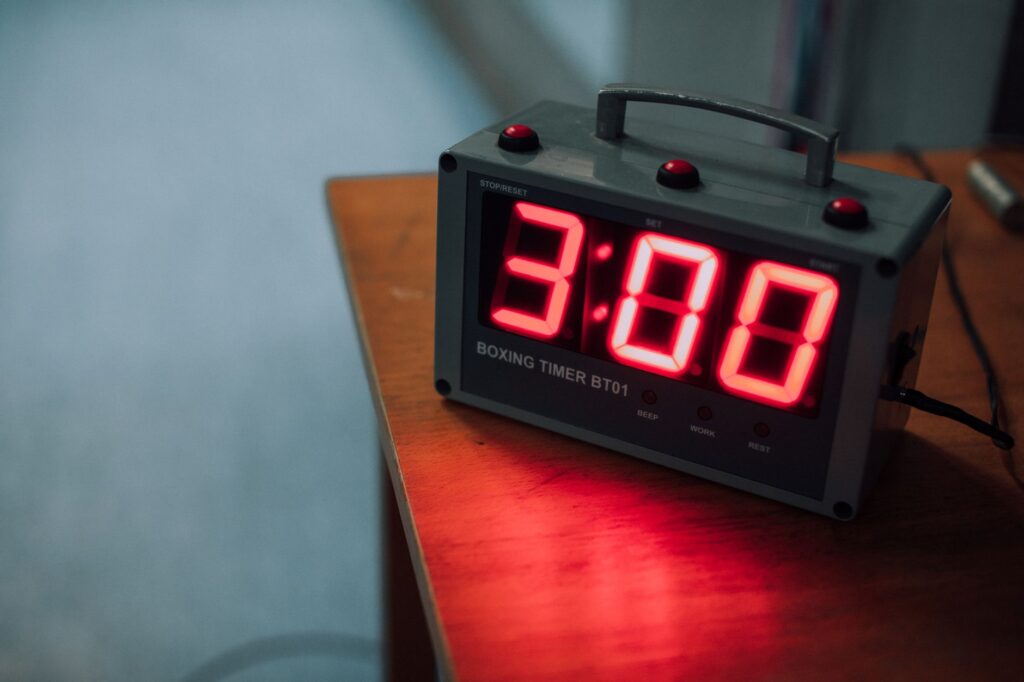
Tilt Timer is a free online timer you can open in your browser. Start from a preset. Or set with a custom MM:SS value.
Use the free online timer when you need a quick countdown with a big display, responsive controls. Plus, an alarm beep at the end. Now, it runs in the browser and states that your data never leaves your device. And that matters.
That combination solves a small but real porblem. Most people dont need a full scheduling system just to time 5 minutes, 15 minutes, or a 25 minute work block. Look they nede a timer that starts fast. Shows the remaining time clearly. And gets out of the way.
Tilt Timer is built for that narrow job.
What Tilt Timer does in the browser
Tilt Timer is an online countdown timer. It counts down from a chosen duration. Shows the remaining time in a large display. And plays an alarm beep when the timer is done. Simple as that.
It isn’t described as a stopwatch, count up timer, interval timer, or recurring shedule tool. Makes sense.
The browser based approach is the point. There’s nothing to install. And the tool is meant for quick in browser timing. A browser timer is a good fit. For ordinary tasks liek timing a meeting segment. A stretch break, a study block, a brewing step. Or a short writing sprint.
It’s less suitable for anything that needs guaranteed timing accuracy or operating sytem level alerts. Honestly, the stated alarm behavior is an alarm beep, a Dismiss control. Plus, a title bar countdown when done. The source doesn’t state push notifications, background notifications, or device alerts.
Free online timer for quick countdowns
The Free plan is simpel by design. It supports one countdown timer at a time. Six built in presets. And custom MM:SS entry up to 99:59.
The built in presets are 1, 3, 5, 10, 15, and 25 minutes.
A timer with presets is best when the length is obvious before you begin. Tap 1 minute for a quick reset. 3 minutes for a short pause. 10 or 15 minutes for a focused block. Or 25 minutes when you want a longer session without typing.
For a one tap timer, the preset buttons are the fastest path. It adds up.
Custom entry matters when the preset list is close. But not quite rihgt. If you need 7:30, 12:45, or 45:00, type the value into the Custom time field in MM:SS format.
On the Free plan, the ceiling is 99:59. So longer hour based timers belong in Pro tools.
| Need | Free plan | Pro tools |
|---|---|---|
| Start a quick countdown | Use one of 6 presets: 1, 3, 5, 10, 15, or 25 minutes | Use presets, plus saved custom presets |
| Type a custom time | MM:SS format up to 99:59 | Hours support with custom time up to 23:59:59 |
| Run more than one timer | One countdown timer at a time | Up to 8 simultaneous timers with labels |
| Reuse custom durations | Use the built-in presets or type the time again | Save up to 20 custom presets stored in the browser |
| Review completed timers | No stated history feature in the Free plan | History of the last 100 completed timers |
| Export records | No stated export feature in the Free plan | Export history as CSV or JSON |
| Choose alarm behavior | Alarm beep when time is up | 5 alarm sounds and a repeat alarm option |
Start a preset or custom MM:SS timer
The fastest way to judge a countdown tool is to start a real timer with it. Use a tiny duration first, such as 1 minute. So you can see the finish behavior, the alarm. And the Dismiss control wihtout waiting long.
- Open Tilt Timer in your browser.
- Tap a preset to start timing. The Free plan includes 1, 3, 5, 10, 15, and 25 minute presets.
- For a custom countdown, use the Custom time, MM:SS, field.
- Type a time in MM:SS format. Also, the app message says, Enter a time like 5:00..
- Select Start to begin the countdown.
- Use Pause, Start and Reset to pause, resume, or restart timing.
- Use Copy time to copy the remaining time as text.
- Use Dismiss when the alarm is finished.
- Use Get Embed Code, then Copy Code. If you want to paste the embed into any page.
- In Pro tools, use Add timer, Save preset, History, Export CSV, Export JSON, and Alarm sound.
The Tilt Timer Pro plan raises the tool’s limits. Adn adds up to 8 simultaneous timers. With labels, saved presets, history, exports, alarm sound choices. A repeat alarm option, and hours support.
Controls for Start, Pause, Reset, and Copy time
Countdown controls seem minor untill you need to stop mid task. Tilt Timer uses Start, Pause, and Reset for the basic timing loop. Start begins the countdown, Pause stops it temporarily, Start resumes it. And Reset restarts the timing state.
Copy time is a useful small feature. Becuase it turns the remaining time into text.
If your coordinating with someone in a document, chat, or task note, copying the remaining time is cleaner than retyping what you see on the display. It also reduces the chance of writting 5:30. When the timer actually says 3:50.
Dismiss is for the finished alarm. Once the alarm beep has done its job, Dismiss clears that finished state.
This is the right control to use after a countdown ends. Rather then resetting early or starting another timer. Meanwhile, the alarm is stil active. You get the idea.
Privacy and the limits of a private timer online
Tilt Timer states that it runs in the browser. And is 100% private, with your data never leaving your device. For many timer tasks, that’s the privacy detail that matters. The countdown is a local browser activity, not a shared record by default.
There are still boundaries to understand.
The source doesn’t state cloud sync, server backups, account history, or cross device syncing.
If you expect a timer history to follow you between devices, that isn’t a stated feature.
Saved custom presets in Pro tools are described as stored in the browser. That’s convenient for repeated durations on the same browser. But it shouldn’t be treated as an account based archive.
For date focused work rather than countdown timing, use Date Teller for date work. If your real task is tracking progress. Instead of counting down one block, use Prog Tracker for progress tracking.
Multiple timers online, labels, history, and exports
The free plan is intentionally narrow. One countdown at a time. Thing is, thats fine for a single meeting segment, a short cooking step. Or a focused task.
It becomes limiting when you need one timer for a call. Another for a break. And another for a timed process running in parallel.
Pro tools cover the multiple timers onilne use case. With up to 8 simultaneous timers and labels.
Labels matter because eight unlabeled countdowns would be a mess. A label lets you separate a 10 minute review. From a 25 minute focus block. Without relying on memory alone.
History and exports are also Pro tools.
Tilt Timer lists history for the last 100 completed timers. Plus Export CSV and Export JSON. Just like that.
Well, those formats are useful when completed countdowns need to move into a spreadsheet, a reporting note. Or another system that accepts structured text.
Alarm options are part of Pro aswell. The listed sounds are Classic beep, Soft chime, Digital, Low tone, and Rapid.
Pro tools also include a repeat alarm option. Meanwhile, the Free plan uses an alarm beep when the timer is done.
Embed Tilt Timer on a page
Website owners have a specific path inside the tool.
Use Get Embed Code, then Copy Code, and paste the embed into any page. That’s the stated workflow and its the one to follow. If you want the timer available inside a page. Rather than sending visitors to a seperate tool page. Realy.
An embedded timer can make sense on a training page, workshop page, lesson page, or internal process page where the countdown is part of the activity. It isnt a replacement for a full scheduling system. Plus the source doesn’t state any customization controls beyond the embed code workflow.
Treat it as a countdown component with presets. Custom tiem entry, and an alarm. That’s it.
Troubleshooting common timer mistakes
The custom time field rejects what you typed
Use MM:SS format on the Free plan. Type 5:00 instead of 5. And type 09:30 instead of a phrase like nine. And a half minutes.
The app message gives teh pattern: Enter a time like 5:00..
You need a timer longer than 99:59
The Free plan custom limit is 99:59. Hours suport is listed with Pro tools, with custom time up to 23:59:59. If your task is longer than the Free limit, don’t try to force it into MM:SS. By splitting it mentally. Unless that split is acceptable for the task.
You are trying to run a second timer on the Free plan
The Free plan supports one countdown timer at a time. If you need parallel timers with labels, that’s a Pro tools feature. With up to 8 simultaneous timers. Otherwise, run the timers one after another to avoid mixing up alarms.
The alarm finished and the screen still shows the ended state
Use Dismiss when the alarm is finished.
Reset is for restarting timing. Meanwhile, Dismiss clears the completed alarm state, taht distinction helps when you want to acknowledge the alarm without immediately starting over.
You expected a stopwatch or count-up mode
The source describes countdown timing. Plus, it doesn’t state a stopwatch, count up mode, interval timing, or recurring schedule feature.
If the job is measuring elapsed time from zero, choose a tool built for that mode. Instead of bending a countdown timer into the wrong shape.
You expected device-level notifications
Tilt Timer states a alarm beep. And a title bar countdown when done. It doesnt state push notifications, background notifications, or operating system alerts.
For best results, treat it as an active browser timer. And check that you can hear the alarm beep. Before relying on it.
Frequently asked questions
Is Tilt Timer a free online timer?
Yes. Tilt Timer has a Free plan with one countdown timer at a time. Six built in presets, custom MM:SS entry up to 99:59. And an alarm beep when time is up.
Pro tools raise limits and add extras. But the core countdown timer is available on the Free plan.
Can I use it as an online timer with alarm?
Yes. Tilt Timer includes an alarm beep when the countdown is done. Plus a Dismiss control for the finished alarm.
Pro tools add five alarm sound choices.
Classic beep, Soft chime, Digital, Low tone and Rapid.
Can I make a custom MM:SS timer?
Yes. Use the Custom time, MM:SS, field and enter a value like 5:00. On the Free plan, custom MM:SS entry goes up to 99:59.
Can I run multiple timers online?
Multiple simultaneous timers are a Pro tools feature. Pro supports up to 8 simultaneous timers with labels.
The Free plan supports one countdown timer at a time.
Is Tilt Timer private?
Tilt Timer states that it runs in the browser. And is 100% private, with your data never leaving your device.
The source doesn’t state cloud sync, server backups, or cross device syncing. Saved custom presets in Pro tools are stored in the browser. Seriously.
Can I embed the timer on my own page?
Yes. Use Get Embed Code, then Copy Code. And paste the embed into any page. That’s the stated workflow for adding Tilt Timer to a page.
If you need a quick countdown now, start with the 5 or 10 minute preset and confirm the alarm behavior. If the exact duration matters, use the Custom time field in MM:SS format. If you need labels, history, exports, or several countdowns. At once, check the Pro limits. Before building your workflow around it.
.
Try It Free: Tilt Timer
Tiny browser timer with tactile presets and responsive controls for quick in-browser timing.
Open Tilt Timer →